How to send a large number of photos via email (without them bouncing back)
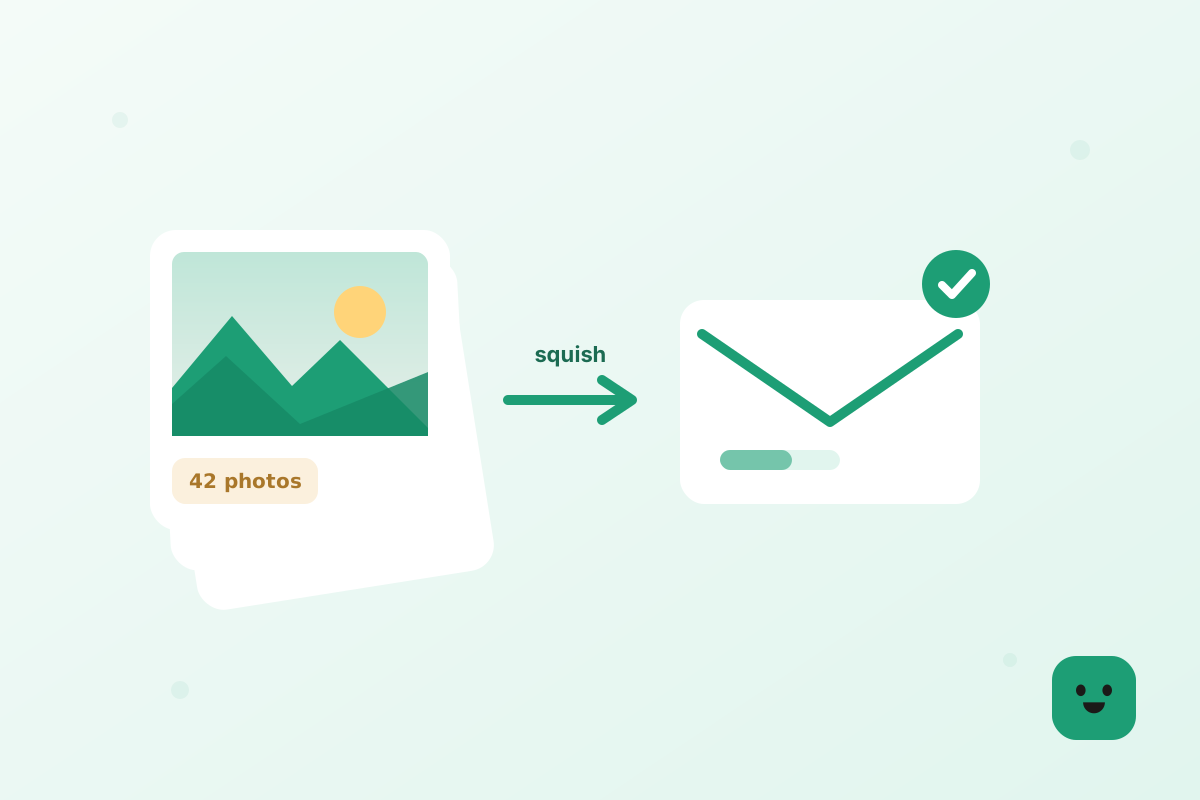
To send a lot of photos by email, shrink them in your browser and send them in batches of 15 to 20 per message, or put the whole set in one shared link and email that instead. The limit is for the whole email, not each photo: 25 MB on Gmail and Yahoo, 20 MB on Outlook and iCloud. Below are the exact photo counts each limit allows, step-by-step fixes for 15, 100, 200 and 500 photos, and the best ways to share a big album without anything bouncing back.
Why email bounces a big batch back
Every email provider caps how much you can attach to one message, and that cap is for the whole email, not for each photo. Add a few large images and the running total quietly climbs until it crosses the line, at which point the message is rejected before it ever leaves your outbox. It is not a bug or a glitch — it is a hard limit built into the mail server.
Phone photos are 3 to 12 MB each these days, so you reach the ceiling after just three or four full-size shots. Try to send twenty and it bounces; try to send a hundred and it never had a chance. The fix is always the same: make the files smaller first, and switch to a shared link once the batch gets genuinely large.
Exactly how many photos fit in one email — Gmail, Outlook and iCloud limits
Here are the real numbers. Gmail lets you attach up to 25 MB per message, and if you go over it quietly swaps your files for a Google Drive link instead of bouncing them. Outlook.com, and the Outlook desktop app with a personal email account, cap a message at 20 MB, while Microsoft 365 work accounts default to 35 MB and can be set anywhere from 1 MB to 150 MB by an administrator. iCloud Mail also stops at 20 MB, but Apple’s Mail Drop steps in for anything larger and sends it as a link for up to 5 GB. Yahoo Mail matches Gmail at 25 MB. Every one of these figures is the total for the whole message, not a per-photo allowance.
Turn those megabytes into photo counts and the picture is stark. At full size, 20 to 25 MB is only three or four untouched phone photos. Compress and resize the batch first and each image drops to roughly 300 to 800 KB, which means 15 to 20 comfortably fit inside a single 25 MB Gmail or Yahoo message, and around a dozen inside a 20 MB Outlook or iCloud one. Anything beyond that is where a shared link takes over. For every provider’s number in one place, see our guide to email attachment size limits.
Step 1: compress the whole batch
Compression squeezes the file size down while keeping the photo looking the same on a screen. You can compress the whole batch of JPGs at once, right in your browser, with nothing uploaded anywhere.
JPGTry the toolCompress JPGOpenIf you would rather not think about settings at all, use the photo size reducer. It compresses every photo with sensible default settings, keeps the dimensions as they are and works on JPG, PNG, WebP and iPhone HEIC files, so you can drop in the batch and download the lot without choosing anything.
KBTry the toolReduce photo sizeOpenStep 2: resize so they’re email-sized
Compression alone helps, but resizing the dimensions is what really shrinks a big batch. A photo sent to be viewed on a phone or laptop does not need to be 6000 pixels wide. Resize them for email so the long edge sits around 1600 pixels and the files often drop by 80 percent, with no visible change on screen.
EMTry the toolResize image for emailOpenHow to send 15 pictures at one time via email
Fifteen pictures is the sweet spot where one email still works, as long as you shrink them first. Fifteen untouched phone photos weigh 45 to 180 MB together, which no provider will accept. Resized so the long edge is about 1600 pixels and compressed, each one drops to roughly 300 to 800 KB, so all fifteen land somewhere between 5 and 12 MB. That fits comfortably under the 25 MB cap on Gmail and Yahoo and the 20 MB cap on Outlook and iCloud, with room to spare for the text of the email.
The steps take about a minute. Select all fifteen photos and resize them for email in one go, download the batch as a ZIP or as separate files, then attach them to a new message. If your email app lets you attach a whole folder, the ZIP keeps things tidy; if the recipient is on a phone, separate JPGs are easier to open and save one by one.
If the message still bounces, check two things. First, make sure you attached the resized copies and not the originals, which sit right next to them in most download folders. Second, remember that attachments grow by roughly a third while they travel through the mail system, so a batch that reads 19 MB on your computer can count as more than 20 MB on the server. Trim the set to twelve or thirteen photos, or resize to 1200 pixels, and it goes through.
Sending 100 photos
A hundred photos is past the point where attachments make sense on any provider. Even squeezed down to 400 KB each, a hundred images is around 40 MB — well over every limit on the list. You have two sensible options. The first is to split them into batches: compress and resize the lot, then send them as four or five separate emails of 15 to 20 photos each, which keeps every message under the cap. It is a little clumsy, but it works, and the recipient gets everything as ordinary attachments.
The second, and usually better, option is to skip attachments altogether. Compress the hundred photos into one ZIP, upload it to Google Drive, Dropbox or WeTransfer, and email a single link. One tidy message, nothing bounces, and your recipient downloads the whole set in one go at whatever quality you chose.
Sending 200 photos
At two hundred photos, splitting into batches becomes a chore nobody enjoys — that is ten or more separate emails to write, send and keep track of. This is firmly link territory. Compress and resize the whole folder so the download is quick, ZIP it, and share it through a cloud service. WeTransfer sends up to 2 GB free with no account, Google Drive gives you 15 GB, and Dropbox and iCloud work just as well if you already use them.
If the two hundred photos are meant to be kept or printed, you can skip the compression and share the originals through the same link — the email itself stays a single line either way. The only thing that changes when you send a link is how long the upload takes, not whether the message goes through. Do bear in mind that a shared link travels further than an attachment does, so if the batch includes photos taken at home it is worth stripping the location data out of them before you upload.
Sending 500 photos at once
Five hundred photos is an entire event — a wedding, a two-week holiday, a year of a child growing up — and there is no version of this that belongs in an email attachment. Do not even try to split it into batches. Put the whole folder in the cloud and send one link, full stop.
For a set this size, pick a service built for it. Google Drive, Dropbox and OneDrive all handle 500-plus photos comfortably and let the recipient browse or bulk-download. WeTransfer’s free tier tops out at 2 GB, which is plenty for compressed images but may be tight for 500 full-resolution originals, so either compress the batch first to stay under that ceiling or use a Drive-style service for the untouched files. Compressing 500 photos before you upload also means a far faster upload for you and a far faster download for them.
The best way to share a lot of photos
So what is the single best way to share a lot of photos? For anything under about 20 images, a compressed and resized batch attached to a normal email is simplest — no accounts, no links, it just arrives in the inbox. For anything larger, a shared cloud link wins on every count: the email is tiny, nothing bounces regardless of the recipient’s provider, the quality is entirely your choice, and there is no fiddly splitting into batches.
The one habit that makes both routes painless is shrinking the files first. A resized, compressed batch attaches cleanly when it is small enough to, and uploads in seconds when it is not. Whether the photos end up as attachments or a link, doing the squishing up front is what turns a frustrating afternoon into a two-minute job.
Email alternatives: link, ZIP or cloud
If email attachments keep letting you down, three alternatives cover every situation. A shared link — from Google Drive, iCloud, Dropbox or WeTransfer — is the most reliable for big sets and keeps the email itself to a single line. A ZIP file bundles a whole batch into one attachment, which is handy for a medium-sized set that still fits under the limit, and it keeps folder structure and filenames tidy on the other end. And a cloud folder you share once, then keep adding to, is ideal for an ongoing collection.
You can combine them freely: compress a batch, ZIP it, upload the ZIP, and send the link. That gives you the smallest possible download and a single, clean message — the most robust way there is to move a large number of photos from one person to another.
Squeeze in more with WebP
WebP is a newer image format that holds the same quality as a JPG in a noticeably smaller file. If your recipient is on a reasonably modern phone or computer, converting the batch to WebP lets you fit even more into one email. Most people open WebP fine now, though a very old device or app might not, so keep JPG in your back pocket for anyone on ancient software.
WEBPTry the toolJPG to WebPOpenIn short
Know your limit — 25 MB on Gmail and Yahoo, 20 MB on Outlook and iCloud — and remember it is the total for the whole message, not per photo. Compress and resize the batch to fit a dozen or more under that cap, convert to WebP to squeeze in a few more, split into batches for a hundred if you must, and switch to a shared link for 200, 500 or a whole event. Every step runs in your browser, so none of your photos are uploaded to a stranger’s server on the way.
- Gmail and Yahoo cap one email at 25 MB; Outlook and iCloud at 20 MB — total, not per photo.
- Compress and resize a batch to fit 15 to 20 photos under the cap.
- For 100 photos, split into batches or send a link; for 200 or 500, always send a link.
- Convert to WebP to squeeze even more into one message.