How to email large photos without losing quality
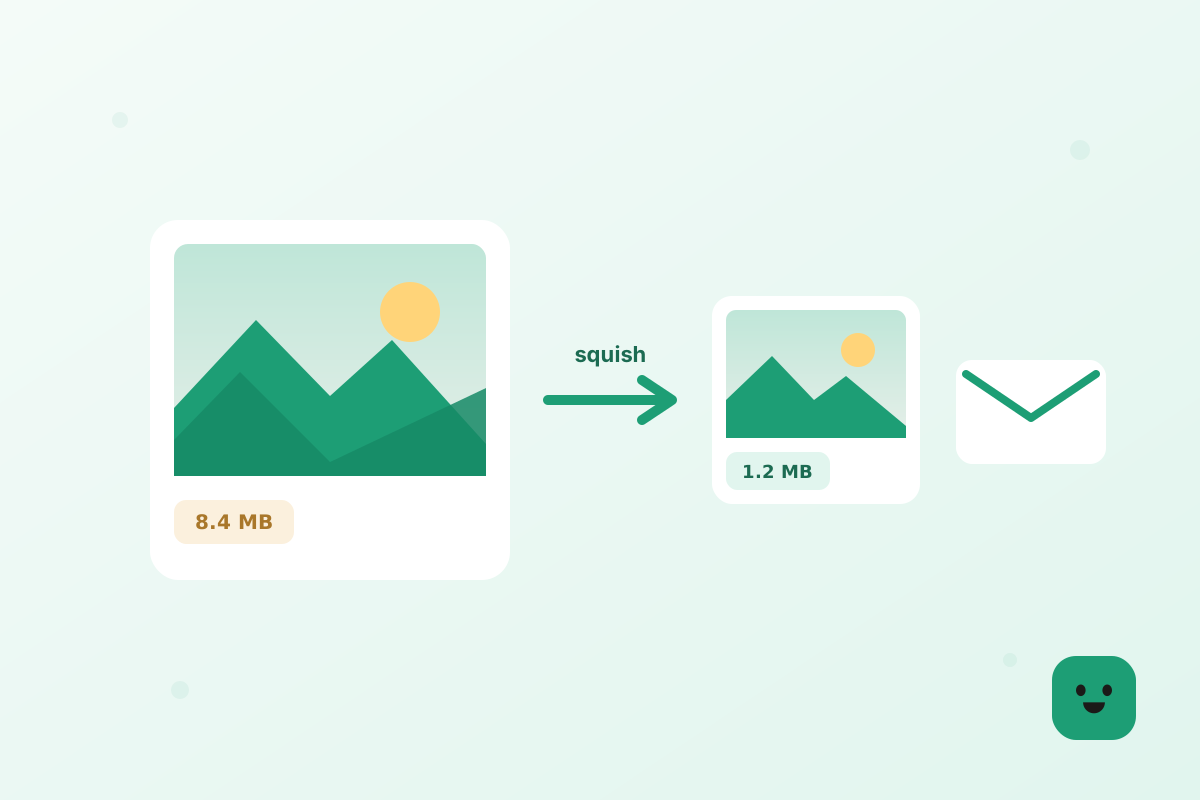
To email a large photo without losing visible quality, resize it so the long edge is about 1600 pixels and compress it, which takes a 6 MB phone photo down to around 500 KB that looks the same on any screen. You can do both in your browser in under a minute, and the original stays untouched on your device. Below is why photos get too big to send, the exact sizes to aim for, how to do it from a phone, and when a link is the better choice.
Why your photos are too big to email
Modern phone cameras shoot 12 to 50 megapixel images, and a single photo straight off the camera is usually 3 to 12 MB. Email was never designed to carry files that size: every provider caps the total size of one message, and Gmail and Yahoo stop at 25 MB while Outlook.com and iCloud Mail stop at 20 MB. Two or three full-size photos, or a single large one from a high-end camera, is enough to hit the wall.
There is a second, less obvious reason. Attachments are converted into text while they travel through the mail system, and that conversion makes them roughly a third bigger than the file on your computer. A photo set that reads 18 MB in your folder can arrive at the server as 24 MB, which is why a message that looks safely under the limit still bounces. The exact number for each provider is in our list of email attachment size limits.
The good news is that nobody needs all those pixels to look at a photo in an email. A laptop screen is around 1500 to 2500 pixels wide and a phone shows even fewer, so a 6000 pixel photo is being scaled down on arrival anyway. Trimming the size before you send changes the file a lot and the picture hardly at all.
How to compress a photo for email
Compressing a photo for email is a two-step job: first make the dimensions smaller, then let the encoder squeeze out the data your eye cannot see. Resizing does most of the work because a photo with half the width and half the height has a quarter of the pixels. Compression then trims another 30 to 70 percent on top, depending on how detailed the picture is.
If you would rather not think about pixels at all, a photo size reducer does both steps for you: drop the photo in, download the smaller copy, attach it. If you already know your photo is a JPG and you only want it lighter, you can compress the JPG directly and keep the dimensions as they are, which is handy when someone has asked for a full-size image but your email will not take the original.
EMTry the toolResize image for emailOpenHow to send large photos via email without losing quality
Losing quality means seeing it: blocky skies, smeared faces, halos around edges. Those only show up when a photo is compressed too hard or shrunk smaller than the screen it is viewed on. Keep the long edge at 1600 pixels or more and use a high compression quality, and the emailed copy is indistinguishable from the original on a phone, tablet or laptop, even though the file is often 80 to 90 percent smaller.
Format matters too. JPG is the safe choice for photos because every device and email app on earth opens it. PNG keeps every pixel exactly, but a PNG photo is usually several times bigger than the same photo as a JPG, so it is the wrong format for emailing pictures from a camera. If your photo is an iPhone HEIC, convert it to JPG before sending, because many Windows computers and older apps cannot open HEIC at all.
The one case where you genuinely need the full file is when the photo is going to be printed large or edited by a professional. Do not squeeze it into an email then: send the original through a shared link, which keeps every pixel and has no size limit worth worrying about. More on that below.
The right size for an emailed photo
For a photo someone will look at on a screen, aim for 1200 to 1600 pixels on the long edge and 200 to 800 KB per file. At those numbers, ten photos add up to roughly 2 to 8 MB, which is well inside every provider’s limit and quick to download even on a slow phone connection. A single photo you want to look its best, such as a portrait or a product shot, can go up to 2000 pixels and 1 to 1.5 MB.
For a photo that will be printed, think in prints rather than screens. A 6 by 4 inch print looks sharp from about 1800 by 1200 pixels, and an A4 or US Letter print wants around 3000 pixels on the long side. Those files are bigger, typically 1.5 to 3 MB each, so send only a few per email, or use a link for anything more.
If a website or form asks for a maximum file size, such as 500 KB or 1 MB for an ID photo, resize first and compress second: at 1200 pixels most photos already land under 500 KB without any visible change. Shrinking by compression alone, at full size, forces the quality down much further to reach the same number.
Emailing large photos from your phone
Phones take the biggest photos and have the fewest settings for shrinking them, which is why “attachment too large” is mostly a phone problem. Your mail app may offer its own fix when a message is too big: Gmail swaps oversized attachments for a Google Drive link, and Apple Mail offers Mail Drop, which sends large attachments as a download link for up to 5 GB that expires after 30 days. Both work, but the recipient gets a link, not photos in the email.
To keep real attachments, shrink the photos on the phone first. Squishly runs in your phone’s browser, so you can open the resize tool in Safari or Chrome, pick photos straight from your gallery, and download the smaller copies back to your phone without installing anything. Then attach the new copies from your files or photos app as usual.
Keeping it sharp
Worried about quality? At 1600 pixels and a high compression setting, the difference is invisible on a phone or laptop screen, but the file is often 80 percent smaller. The trick is to make each photo smaller once, from the original. Every time a JPG is opened and saved again it loses a little detail, so resizing an already-shrunk copy, then compressing it, then resizing again stacks the damage. Always go back to the full-size original when you need a new size.
Crop before you resize, too. If the subject only fills the middle of the frame, cropping away the empty edges keeps the subject at a higher resolution in the same file size, so faces and text stay crisper. And leave your camera’s originals alone: Squishly never touches them, it always creates new copies, so you can try a smaller size and go back if you do not like it.
When to send a link instead
Attachments are the right tool for a handful of photos. Once you are past about 20 photos, or you need to send full-resolution originals, a shared link from Google Drive, iCloud, Dropbox or WeTransfer is simpler: the email stays tiny, nothing bounces, and the recipient can download everything in one go. Shrinking the photos first still helps, because the upload and the download are both much faster.
If you are dealing with a whole album rather than a few big files, our guide on how to send a large number of photos via email covers batches of 15, 100, 200 and 500 photos step by step, including how many fit into each provider’s limit.
In short
Resize to about 1600 pixels, compress, attach. A minute of work turns a 6 MB photo into a few hundred KB that looks the same on screen and sends without bouncing. Keep originals for printing and send those through a link, and remember that every step on Squishly runs in your browser, so your photos never leave your device.
- Resize the long edge to about 1600 pixels.
- Compress to land around 200 to 800 KB per photo.
- Send JPG, not PNG or HEIC.
- For prints, originals or 20+ photos, send a link instead.